





If you've ever worried about Bingbot hitting your server too hard, or wondered why certain pages aren't getting crawled as often as you'd like, Crawl Control is the tool you need to know about.
It's one of the practical features in Bing Webmaster Tools, and many site owners either don't know it exists or don't realise how much control it actually gives them.
Here's a straightforward breakdown of what Crawl Control does, how to use it, and when it actually matters.
What is Crawl Control?
Crawl Control is a feature in Bing Webmaster Tools that lets you set limits on how frequently Bingbot crawls your website. Specifically, you can define how many page requests per second Bingbot is allowed to make, and you can vary that limit across different times of the day.
Think of it like a volume dial for Bingbot. Turn it up, and Bing crawls your site more aggressively. Turn it down, and you give your server more breathing room. You can also schedule those settings so that Bingbot crawls more during quiet hours (overnight) and backs off during your peak traffic periods.
It's a simple concept, but it has some genuinely useful applications depending on the size and setup of your site.
Why would you need it?
For most small sites on solid hosting, Bingbot won't cause any problems. It generally functions well and won't overwhelm a server under normal circumstances. But some situations may warrant dialing things back.
For instance, if you're running a large site with lots of pages and your server resources are stretched, a burst of crawler activity during business hours can slow things down for real users. That's a bad trade-off. Reducing Bingbot's crawl rate during those hours means your actual visitors get priority, while crawling still happens, just at a less disruptive time.
Similarly, if you're doing a major site migration or deploying a significant update, you may temporarily reduce crawl activity while things stabilise. Crawl Control gives you a clean way to do that without resorting to blunt tools like blocking Bingbot entirely.
How to find and use it
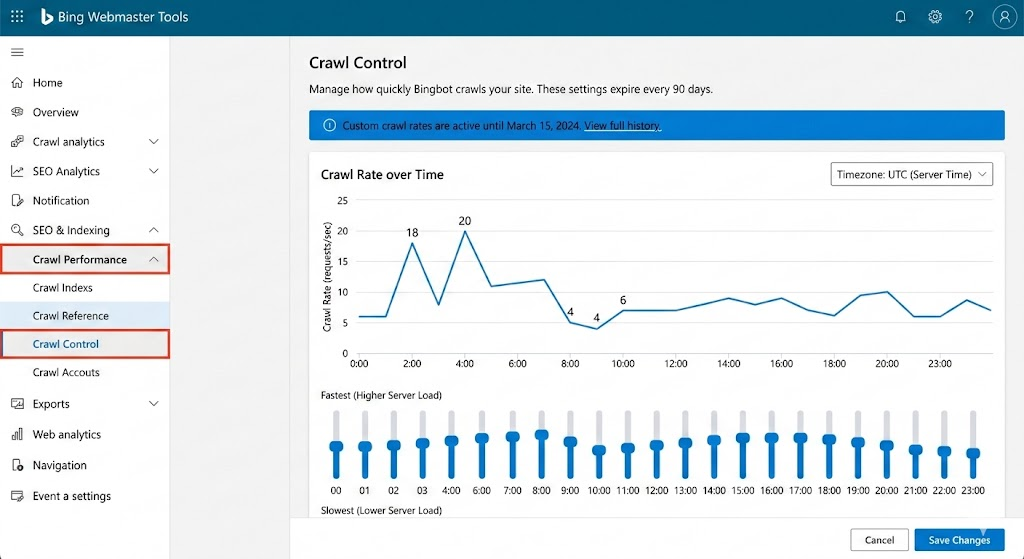
To find this in the modern Bing Webmaster Tools interface, head to Crawl Performance > Crawl Control in the left-hand menu. Note: The "Configure My Site" menu from older guides has been retired.
The tool shows a 24-hour grid where you can drag sliders to set a crawl rate from "Slowest" to "Fastest." You can manually adjust each hour or use a preset to reduce crawling during your peak traffic hours
- Time Zones: Make sure to set the toggle to your server’s time zone so the "quiet hours" actually align.
- Pro Tip: Changes usually take effect within 24 hours, and custom settings typically expire after 90 days, so mark your calendar to revisit
What Crawl Control doesn't do
While Crawl Control manages how often Bingbot visits your site, it does not control which pages get crawled, how deeply they get indexed, or how quickly new content gets picked up.
If you want to stop specific pages from being crawled altogether, that's a job for your robots.txt file or noindex tags, not Crawl Control. If you want to speed up indexing for a newly published page, the right tool is the URL Inspection or URL Submission feature in Bing Webmaster Tools, not adjusting your crawl rate.
Crawl Control is specifically about the rate and timing of Bingbot's visits.
Does slowing down crawling hurt your rankings?
This is the question most people have. The short answer is: no, if you do it cautiously. Reducing crawl speed doesn't tell Bing your content is less valuable; it just means Bingbot revisits pages a bit less frequently.
For a site that publishes new content regularly, setting the crawl speed too low for too long could mean Bing takes longer to discover and index your latest pages. That's a trade-off that can hurt your ranking.
However, for most sites, a modest reduction during busy hours won’t have a noticeable impact on how your content ranks. Bing often prioritises important pages within the set crawl budget.
Crawl control vs Robots.txt
A few practical tips
If you're going to start using Crawl Control, here are a few things worth keeping in mind:
- Don't reduce crawl speed as a default. Only do it if you have a specific reason, like server load or a site migration
- Check your server logs before and after to see whether Bingbot activity was actually causing a problem; sometimes it's not.
- If you publish time-sensitive content, make sure your overnight crawl window is set to a fast enough rate to pick up new pages promptly.
- Review your settings periodically; what made sense during a migration might not be right six months later.
At Embarque, we flag Crawl Control as one of those features that most sites don't need to touch often, but when you do need it, it's really good to know it's there. Getting it right means Bingbot can do its job without getting in the way of yours.
The bottom line
Crawl Control gives you a simple, practical way to manage how aggressively Bingbot crawls your site and when. It's not something you need to think about every day, but it's a genuinely useful lever for larger sites, sites on limited hosting, or anyone going through a period of significant change.
Understand what it does, know what it doesn't do, and use it when you have a real reason to.